In today’s financial markets, a simple password is no longer enough to protect your wealth. As AI-driven phishing and social engineering attacks become more sophisticated, traders can strengthen their account security with multi-factor authentication (MFA). By linking your Email, Phone, and Google Authenticator (GA) to your BingX account, you build a layered security shield that makes unauthorized access harder, even if your password is compromised.
This guide explores the mechanical necessity of multi-factor authentication (MFA) for securing your BingX account, the logic of simultaneous linking, and the troubleshooting steps required to maintain a Zero-Failure security profile on BingX.
Why Secure Your BingX Account With Multi-Factor Authentication (MFA) in 2026?
A strong password is your first line of defense, but it should never be your only one. Even with Two-Factor Authentication (2FA), relying on a single verification method can leave your account vulnerable. SMS codes may be compromised through SIM-swapping attacks, while a hacked email inbox could expose sensitive verification messages.
Multi-Factor Authentication (MFA) strengthens your BingX account by adding layers of identity verification. Linking your phone, email, and Google Authenticator (GA) provides additional safeguards for withdrawals and changes to security settings, making unauthorized access harder even if your password is exposed.
How to Set Up MFA on BingX With Phone, Email and Google Authenticator: A Step-by-Step Guide
To build your security shield, link all three verification methods through the BingX Security Center. Email and SMS deliver one-time codes, while Google Authenticator generates codes directly on your device. Together, they reduce reliance on any single verification channel.
1. Link Your Email: Email Verification
Establishing a verified email is the primary layer of your security stack, serving as the universal handshake required to authorize all subsequent security upgrades.
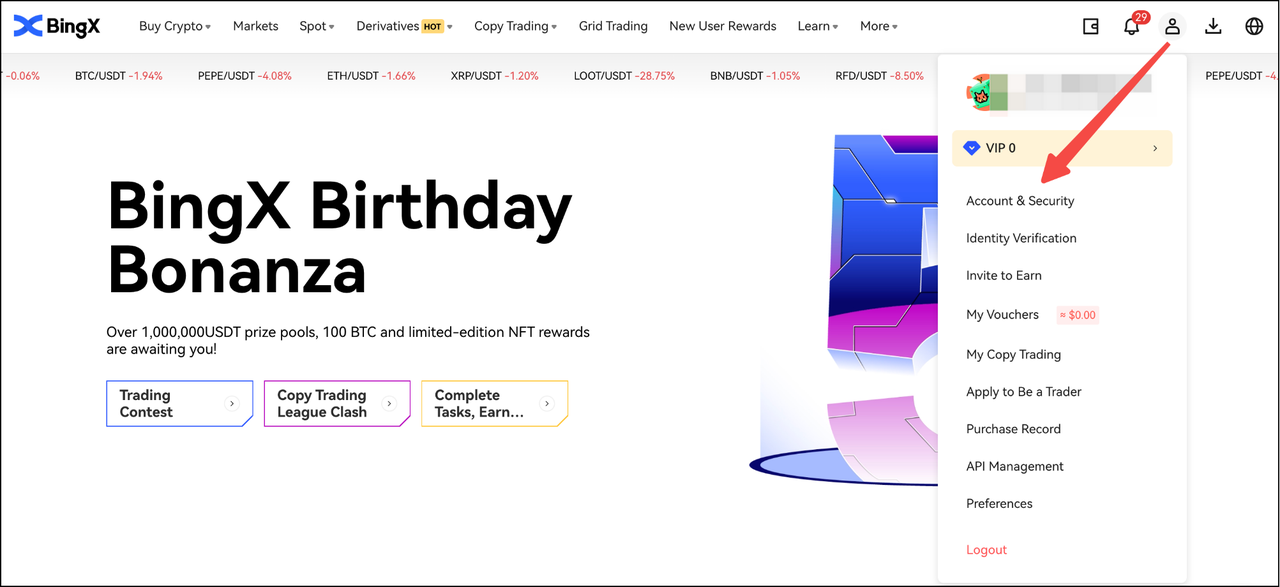
- Log in to the BingX Official Website and hover over the Avatar Icon in the top-right corner.
- Select Account & Security from the dropdown menu and scroll to the Security Center section.
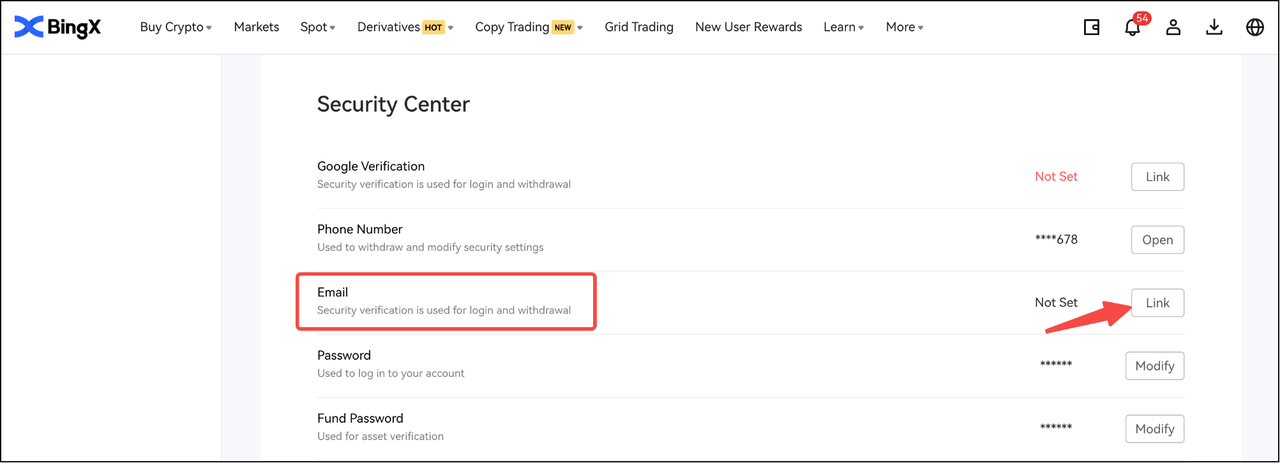
- Locate Email Verification. If it shows as unlinked, click the Link button.
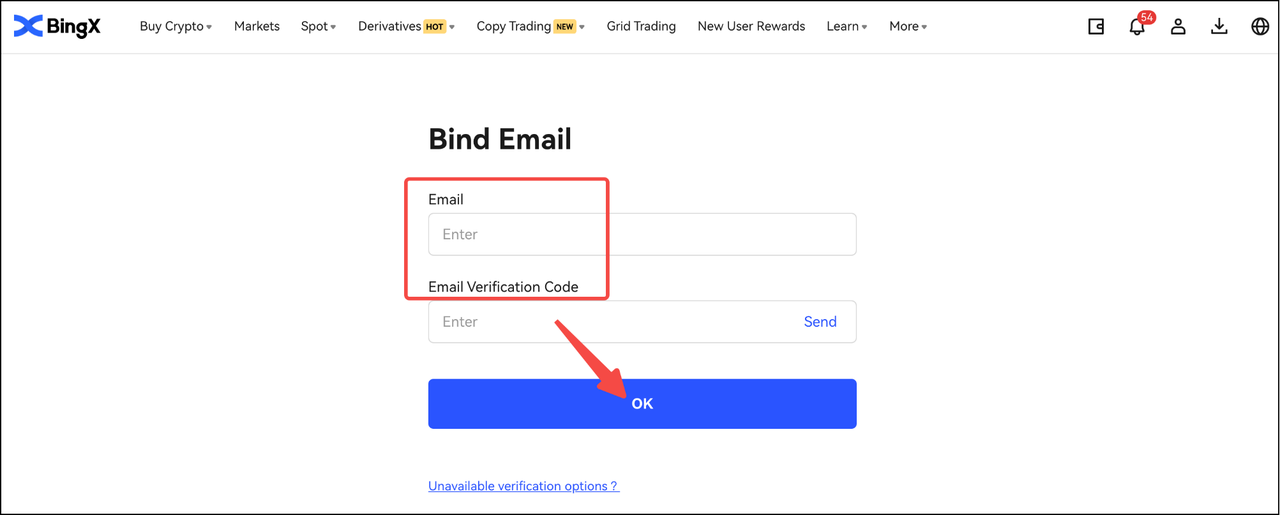
- Enter your secure email address and click Send. Retrieve the 6-digit code from your inbox, enter it into the BingX portal, and click OK.
How to Set Up Email Verification on BingX Mobile App
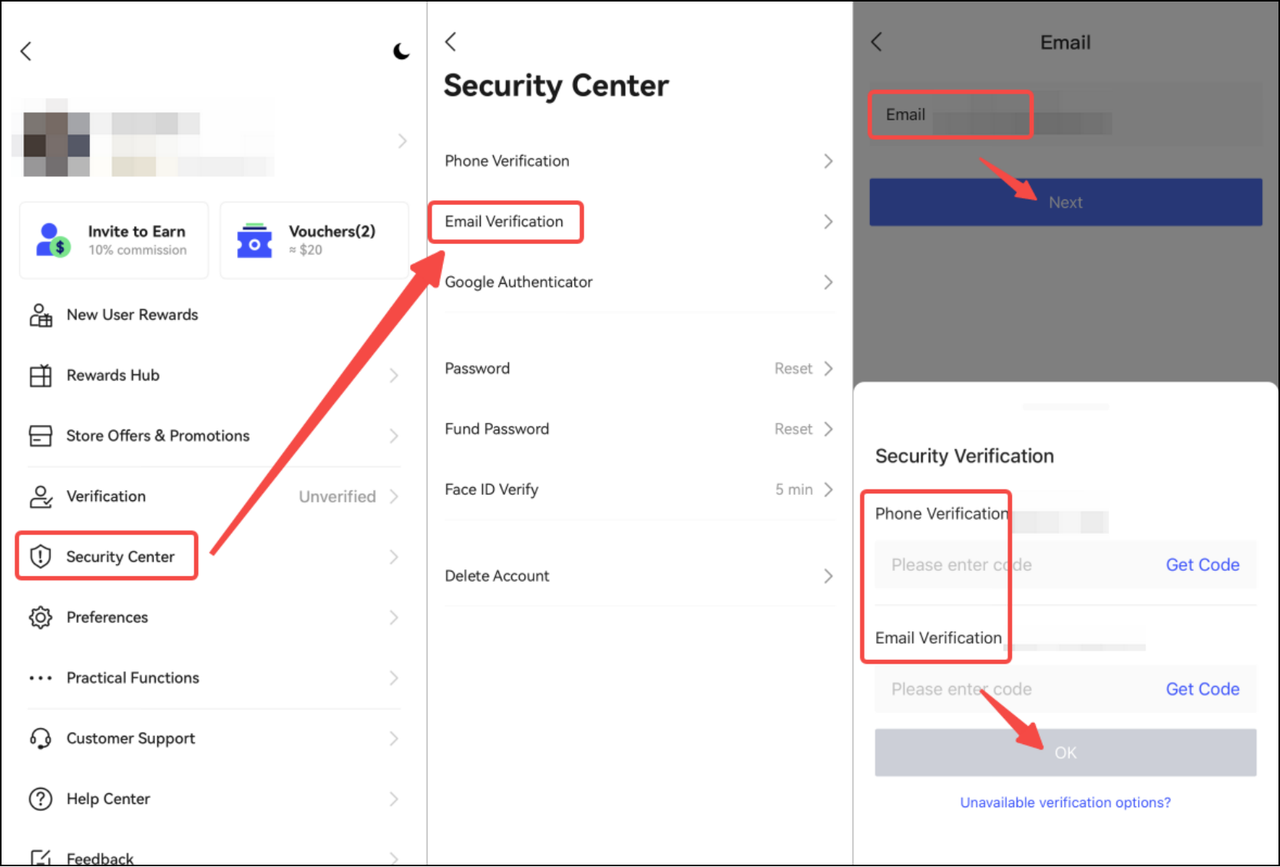
- Open the BingX App
- Tap the Avatar Icon (top-left)
- Security Center
- Email Verification.
Pro Tip: For maximum security, use a dedicated, encrypted email provider like Proton that is separate from your social media or daily use accounts to isolate your financial data.
2. Add Your Phone Number: SMS Verification
Linking a mobile number anchors your account to a physical SIM card, which is a mandatory requirement for high-liquidity activities such as P2P trading and specific fiat off-ramping.
- In the Security Center, locate the Phone Verification row and click Link.
- Select your International Country Code and enter your mobile number.
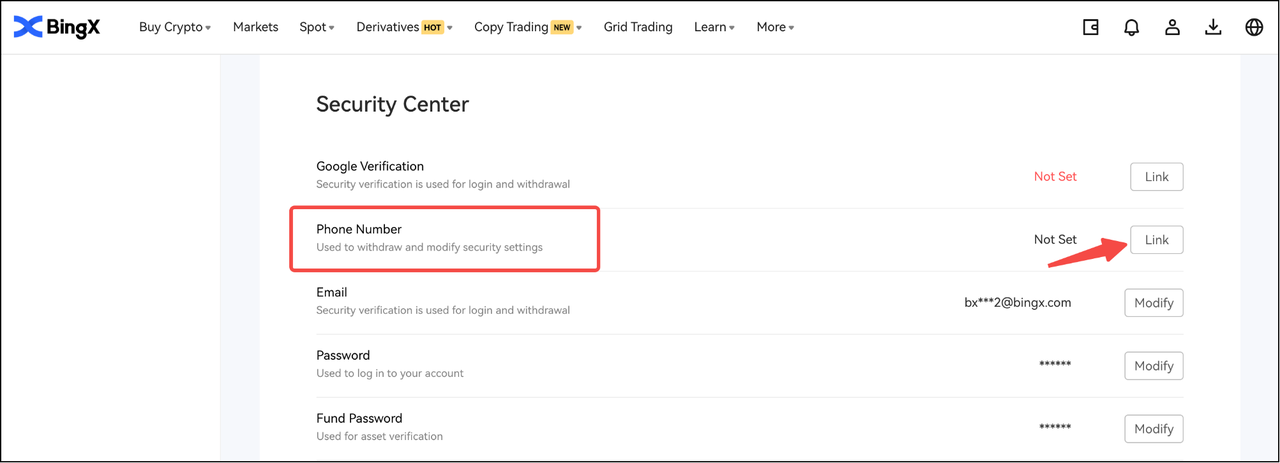
- Click Get Code for both SMS and Email.
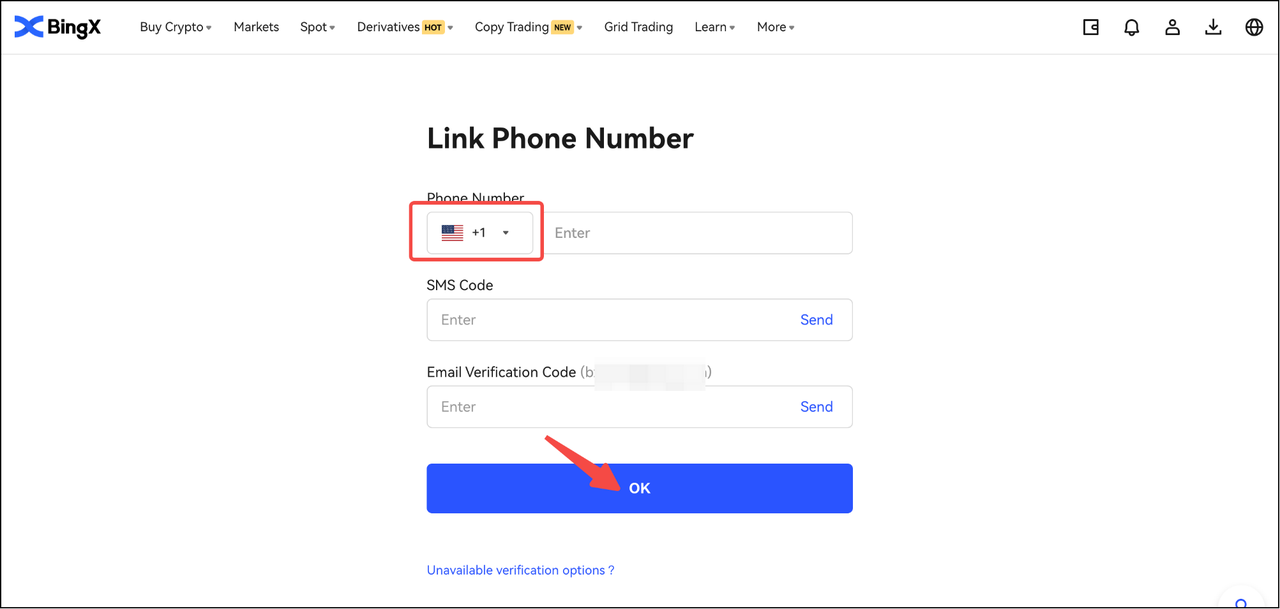
- Enter the SMS code sent to your phone and the verification code sent to your previously linked email simultaneously. Click OK to bind the two layers.
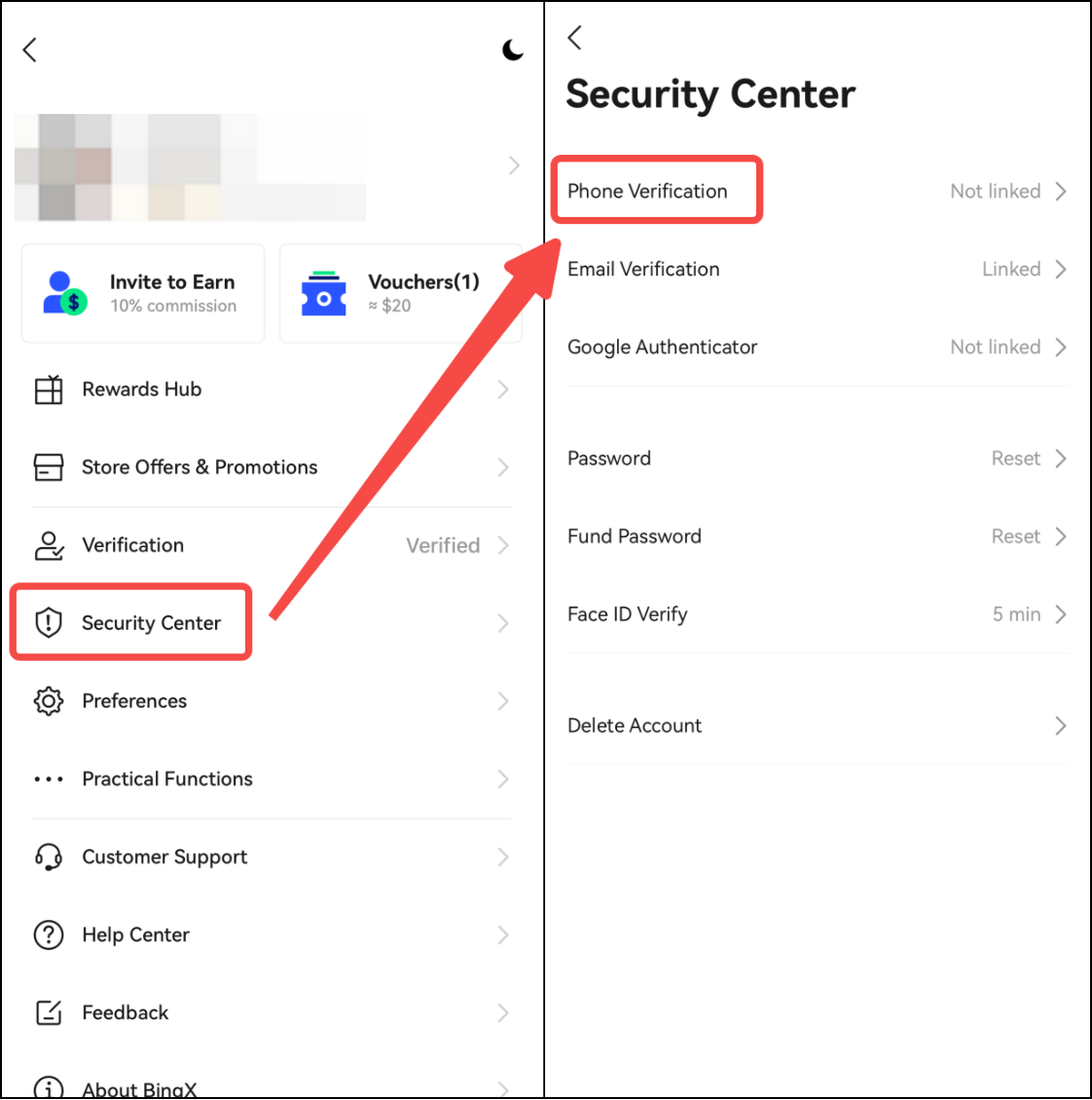
Key Logic: By requiring an email code to link a phone number, BingX ensures that an attacker cannot attach their own phone to your account without first controlling your email.
3. Enable 2FA: Google Authenticator (GA)
The final and most robust layer is the Google Authenticator, which generates a Time-based One-Time Password (TOTP) locally on your device, ensuring that a remote hacker cannot access your codes even if they have intercepted your SMS or Email.
- Download the Google Authenticator app from the App Store or Google Play.
- In the BingX Security Center, click Link next to Google Verification.
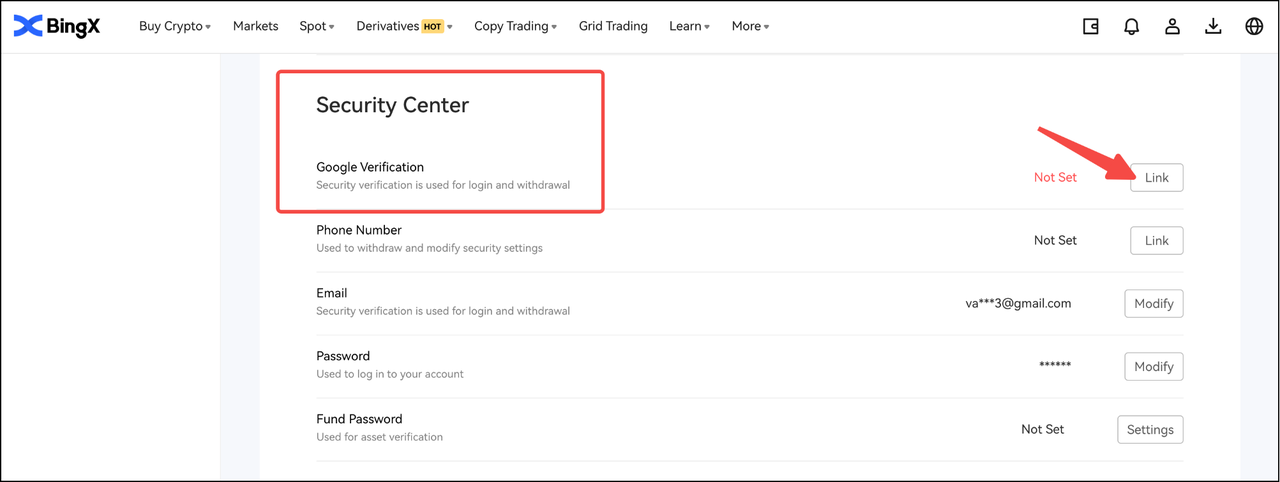
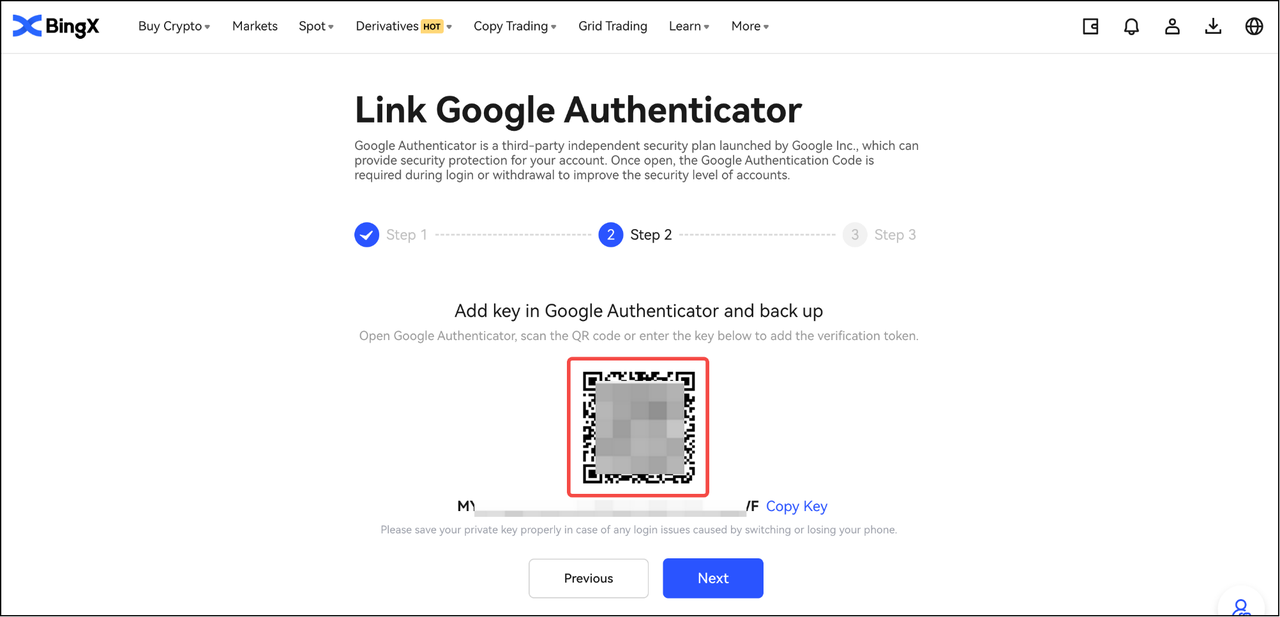
- You will see a 16-digit Secret Key and a QR code. Manually write this key down and store it offline. This is your only recovery tool if you lose your phone; otherwise, you will face a mandatory 24-hour security review to regain access.
- Open the GA app, tap the + icon, and select Scan a QR code or Enter a setup key to paste the 16-digit code.
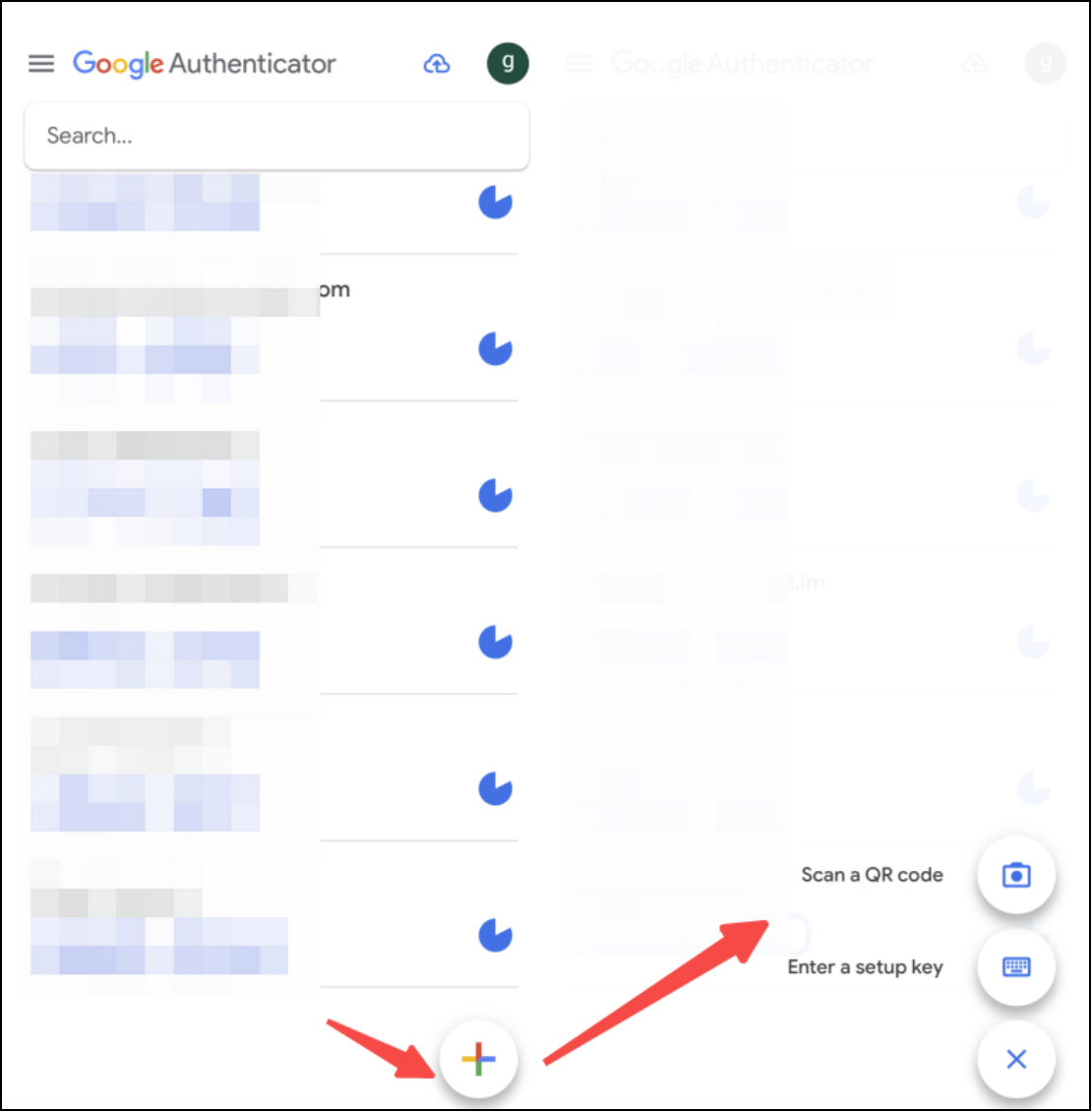
- To finalize the MFA Shield, click Send to receive an Email Code and an SMS Code.
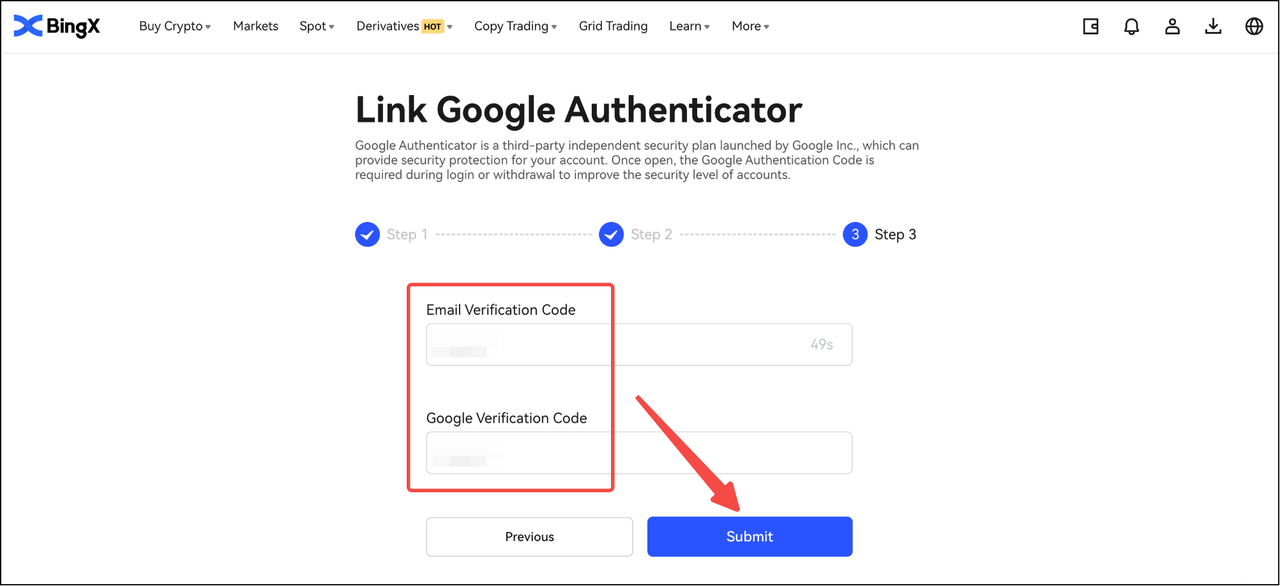
- Enter the Email Code, the SMS Code, and the 6-digit GA Code currently displayed on your app. Click Submit to lock the shield.
What Is the Best Verification Method to Use for Your Account in 2026?
|
Method |
Security Level |
Primary Risk |
Best For |
|
|
Medium |
Phishing/Password Theft |
General Notifications |
|
SMS/Phone |
Medium-High |
SIM Swapping |
Account Recovery |
|
Google Authenticator |
High |
Loss of Device/Key |
Withdrawals & Logins |
In 2026, choosing the right verification method means balancing convenience, speed, and protection against increasingly sophisticated social engineering. Email remains a familiar security channel, with a claimed 99% adoption rate, while SMS provides mobile-based verification for important account activities. However, a reported 15–20% increase in cross-border SMS delivery failures compared with 2024 highlights why relying on multiple verification channels may be valuable.
Google Authenticator strengthens this setup through Time-based One-Time Passwords (TOTP), generating codes directly on your device without relying on mobile networks. Securely backing up your setup key also helps prevent account recovery difficulties if your device is lost. Combining phone, email, and Google Authenticator creates a powerful, multi-layered security shield, with a claimed 99.9% reduction in account breach probability. By protecting your verification channels independently, you can make unauthorized access significantly harder.
MFA Troubleshooting Tips When You Cannot Access Your BingX Account
Even the best security setups can encounter friction. If you find your codes are being rejected, follow these 2026 troubleshooting standards:
1. Incorrect Code Errors on Google Authenticator
The most common cause of GA failure is Time Desynchronization.
- Android: Go to GA App Settings, Time correction for codes, and Sync now.
- iOS: Go to Settings, General, Date & Time, and Enable Set Automatically.
2. Not Receiving SMS or Email Codes
- Whitelisting: Ensure noreply@mail.bingx.com is whitelisted in your email settings.
- Network: For SMS, restart your phone to refresh the connection to the local carrier’s SMS gateway.
- Switching Channels: If a specific route is congested, contact BingX Online Support to request a delivery channel switch.
How to Manage Your BingX Account Security Settings: Updating or Removing Verification Methods
You can manage your linked phone number, email address, and Google Authenticator (GA) through the BingX Security Center. When updating or removing a verification method, you may need to complete additional identity checks using your other available methods to protect your account from unauthorized changes.
- 24-Hour Withdrawal Protection: After certain security changes, such as updating your phone number or resetting Google Authenticator, BingX may restrict withdrawals for 24 hours. This cooling-off period helps prevent unauthorized transfers immediately after sensitive account changes.
- Lost Access to a Verification Method: If you lose access to your phone, email, or Google Authenticator, select "Unavailable verification options?" on the security page and follow the identity verification process to request assistance.
Final Thoughts: Strengthening Your BingX Account Security Beyond 2FA
Securing your BingX account with phone verification, email, and Google Authenticator (GA) is one of the most effective ways to strengthen account protection. However, security is an ongoing habit, not a one-time setup. Regularly review your Security Center to ensure all three verification methods remain active, keep your recovery keys safely stored offline, and update your security settings whenever necessary.
Security Reminder: Multi-factor authentication significantly reduces the risk of unauthorized access, but no security setup is completely foolproof. Stay alert to phishing attempts, never share verification codes, and keep your passwords and recovery keys private to protect your account and digital assets.
Related Reading
- Top Tips and Practices to Secure Your BingX Account (2026)
- How to Link/Update/Remove Your Email Verification
- How to Link/Update/Remove Your Phone Number
- How to Set Up, Link, Unlink, or Change Google Authentication?
FAQs on BingX Account Security
1. How do I secure my BingX account?
Start with a strong, unique password, then link your phone, email, and Google Authenticator (GA) through the BingX Security Center. Keep your verification codes private, store your GA backup key securely, and regularly review your account security settings to maintain protection.
2. How do I enable BingX 2FA?
Open the BingX Security Center and select Link beside Google Verification on the website, or choose Google Authenticator in the app. Scan the QR code or enter the setup key in Google Authenticator, securely save your backup key, and complete the required verification steps to activate 2FA.
3. Where can I find BingX account security settings?
On the BingX website, open the avatar menu and go to Account & Security > Security Center. In the app, tap your profile icon and select Security Center. You can manage your linked email, phone number, and Google Authenticator from there.
4. Why was my withdrawal blocked after changing my email?
BingX applies a 24-hour withdrawal restriction after certain security changes, including removing or updating verification methods. This cooling-off period helps protect your assets against unauthorized withdrawals. Check your account notice for the applicable restriction.
5. What happens if I lose my phone and Google Authenticator backup key?
Select “Unavailable verification options?” on the security page, if available, or contact BingX Online Support through the official website or app. Follow the account recovery and identity verification instructions to restore access. Processing times may vary depending on your situation.
